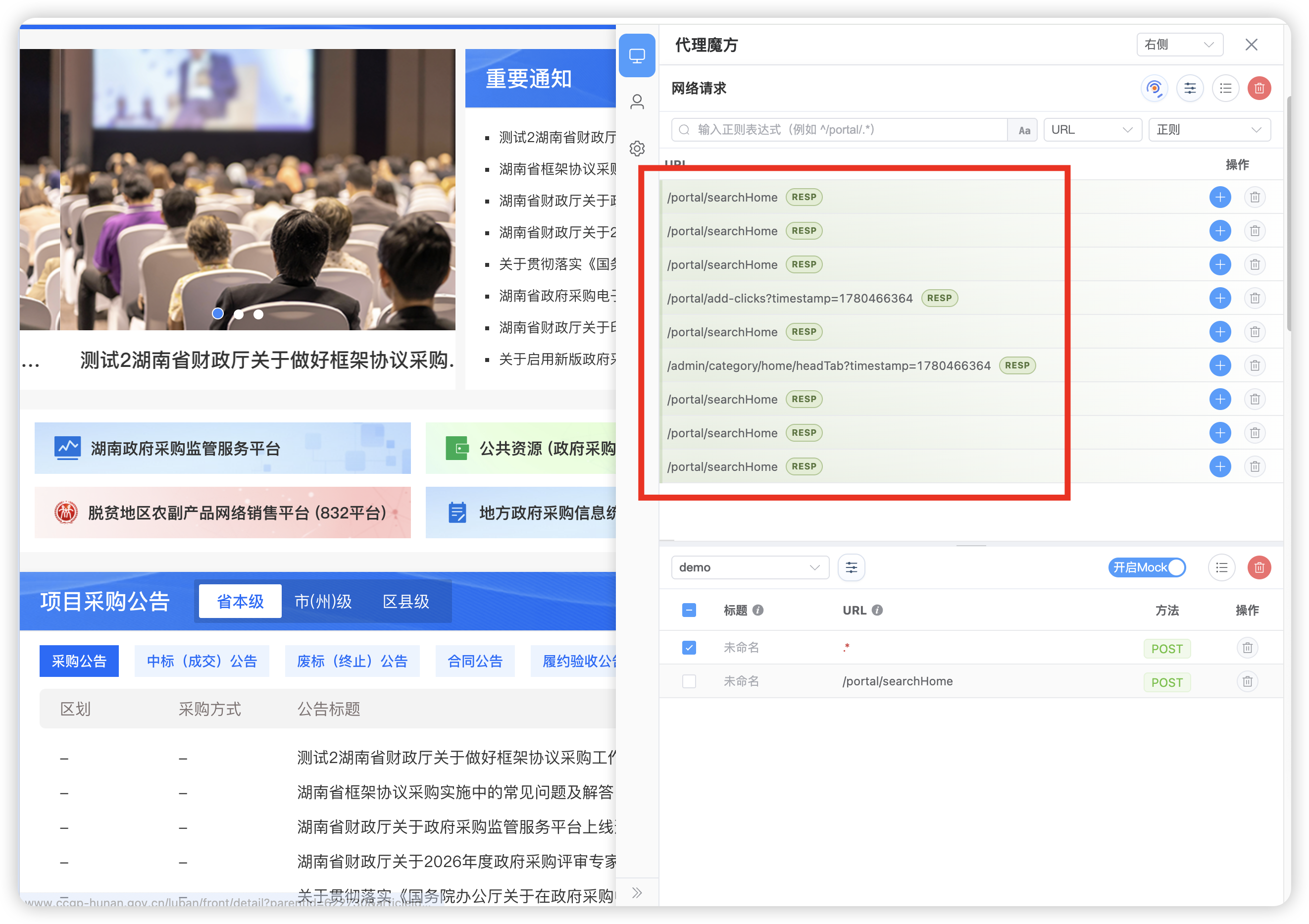
Practical Guide
This guide explains the complete Mock workflow through common development scenarios.
Group management
Groups isolate rules for different projects or scenarios.
- Create a group — open the group selector, choose + Add group, and enter a name. reqable switches to the new group automatically.
- Switch groups — only rules in the active group are shown and loaded.
- Delete a group — click the delete icon beside a custom group and confirm. The group and all of its rules are removed. The Default group cannot be deleted.
- Copy across groups — use the row context menu to create an independent copy in another group.
- Import and export — export the current group or all groups. Import into an existing group or create a new one; imported rules receive new IDs.
Table settings
Use the column-settings button in the toolbar to show or hide Mock table columns. The preference is persisted across refreshes.
Switching between scenarios
Create multiple rules for the same endpoint, then enable, disable, or reorder them to switch responses. This is useful for A/B tests and multi-state UI development.
Name a rule
Double-click the title column and give each rule a meaningful name, such as “Success” or “Fallback error.”

Enable one scenario
Use the checkbox in the first column to control whether a rule participates in matching. Keep only the intended response enabled when you want a single active scenario.

Reorder rules
When multiple enabled rules can match the same request, the first rule in the list wins. Drag rules to change their priority.

Advanced Mock
Advanced mode executes a JavaScript function to generate the response dynamically. Use it when the result depends on request parameters, random values, dates, or other runtime conditions.
Switch the response mode to Advanced Mock in the details panel. Monaco Editor provides type information for the function signature:
(context, response, { _, dayjs }) => {
  return response;
};Parameters:
- context — isolated request and response snapshots. Mutating them does not affect the page's original request.
context.request:{ url, method, headers, body, query }.context.response:{ status, statusText, headers }.
- response — response-body data. Return the final value from the function.
- utils — utility libraries.
utils._:lodash.utils.dayjs:dayjs.
The following example builds a paginated list:
(context, response, { _, dayjs }) => {
  const { query } = context.request;

  response.data.list = Array.from({ length: 10 }, (_, i) => ({
    id: i + 1,
    name: `Item ${i + 1}`,
    date: dayjs().subtract(i, 'day').format('YYYY-MM-DD'),
  }));

  response.data.total = 100;
  response.data.pageNo = Number(query.pageNo) || 1;

  return response;
};
Search
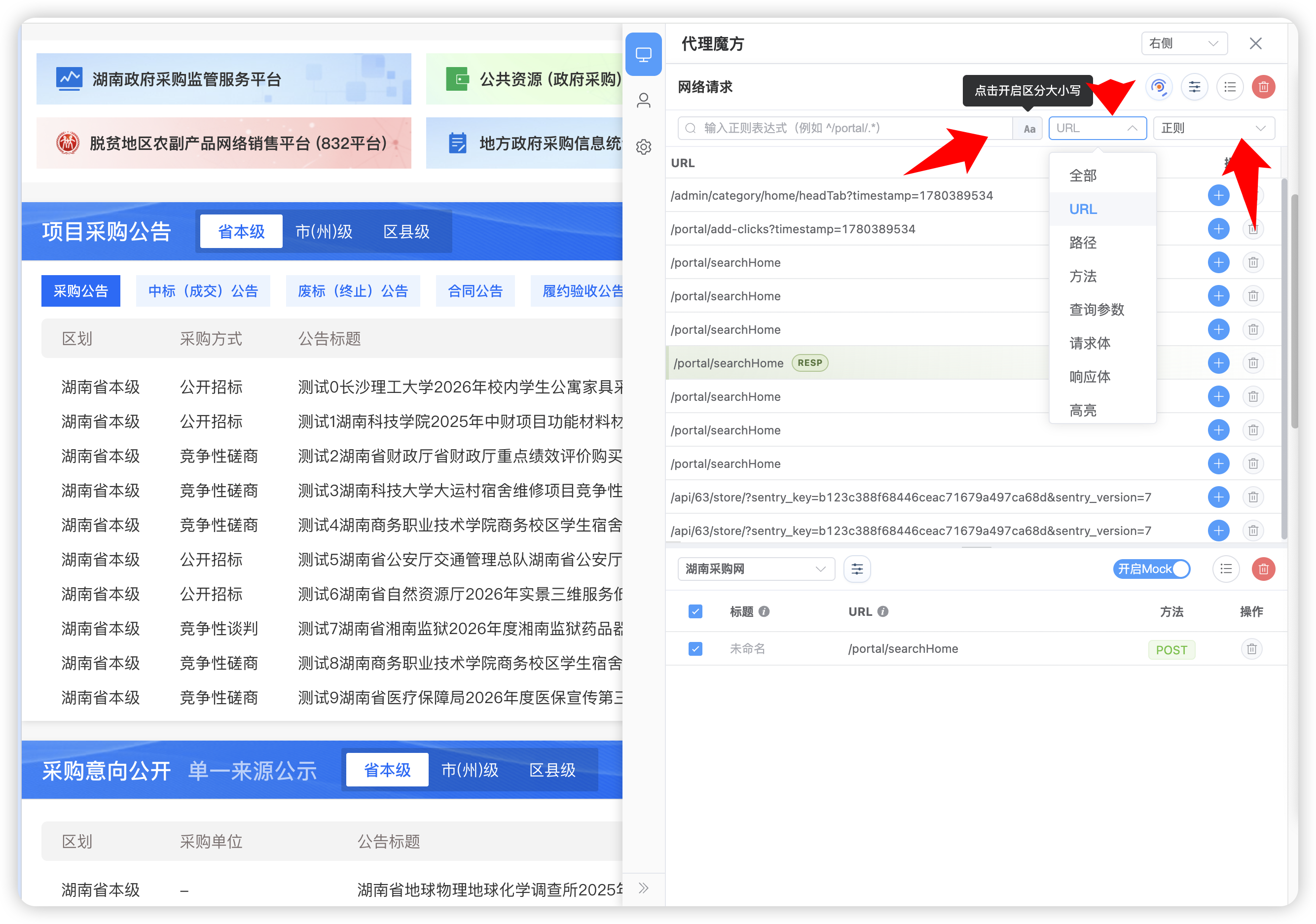
The monitor panel provides flexible filtering to locate requests quickly. The search bar contains a keyword input, a field selector, and a match-mode selector.
Fields:
- All — search every supported field.
- URL — search the complete URL, including the origin.
- Path — search only the URL path.
- Method — search methods such as
GETandPOST. - Query — search URL query parameters.
- Request body — search request content.
- Response body — search response content.
- Highlighted — show only highlighted requests.
Match modes:
- Contains / Does not contain.
- Equals / Does not equal.
- Regex, for example
^/portal/.*.
Use the Aa button to toggle case sensitivity.
Additional Mock capabilities
A rule can modify request metadata and network behavior in addition to replacing the response.
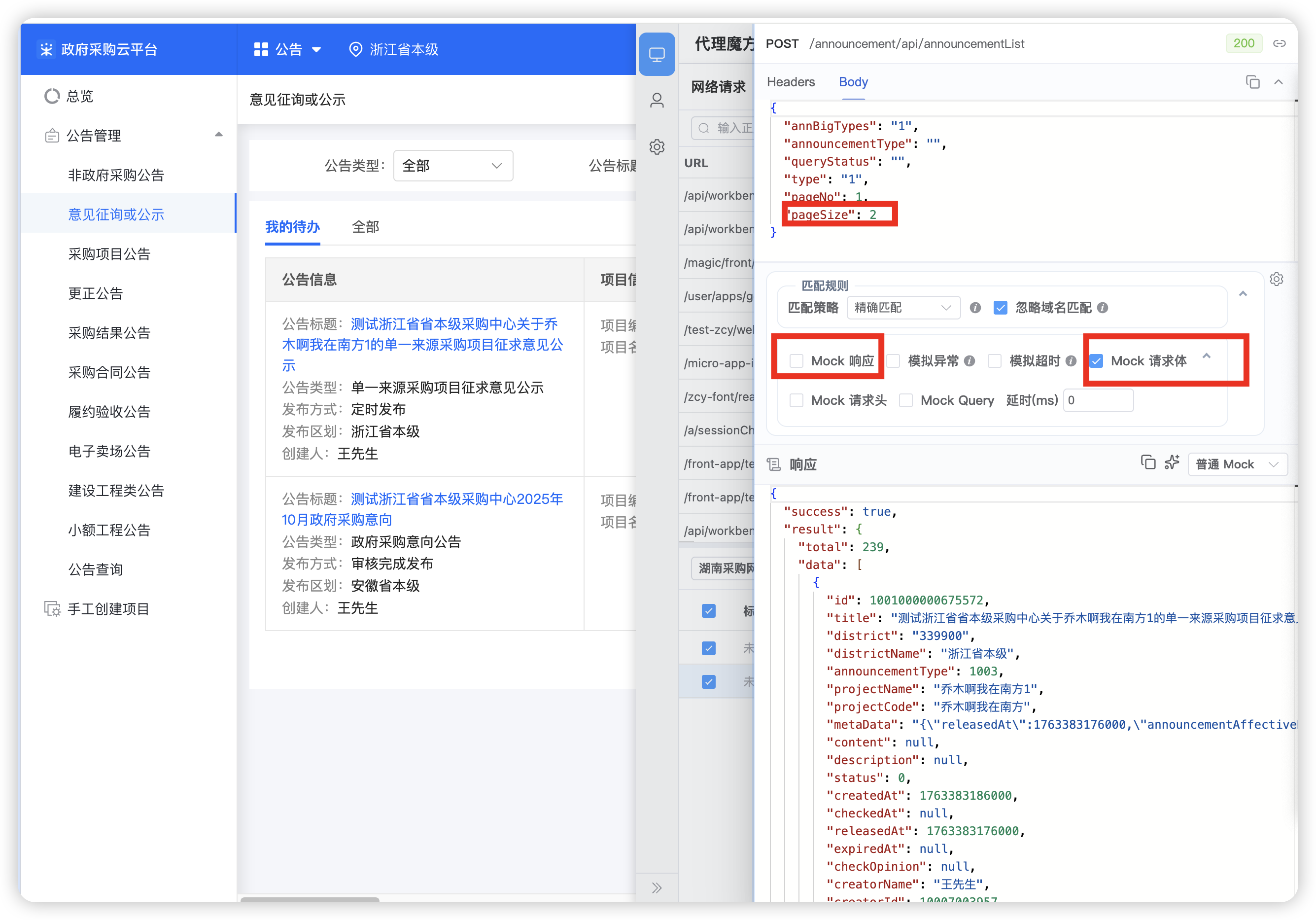
Request parameters
Rewrite parameters before the request reaches the backend to observe the real backend response for different inputs.
- For
POST,PUT, andPATCH, enable Mock request body and edit theBodypanel. - For
GETandHEAD, enable Mock Query and edit theQuerypanel.
Disable Mock response when your goal is to inspect the backend's real response. Otherwise, the mocked response hides the result you are trying to test.
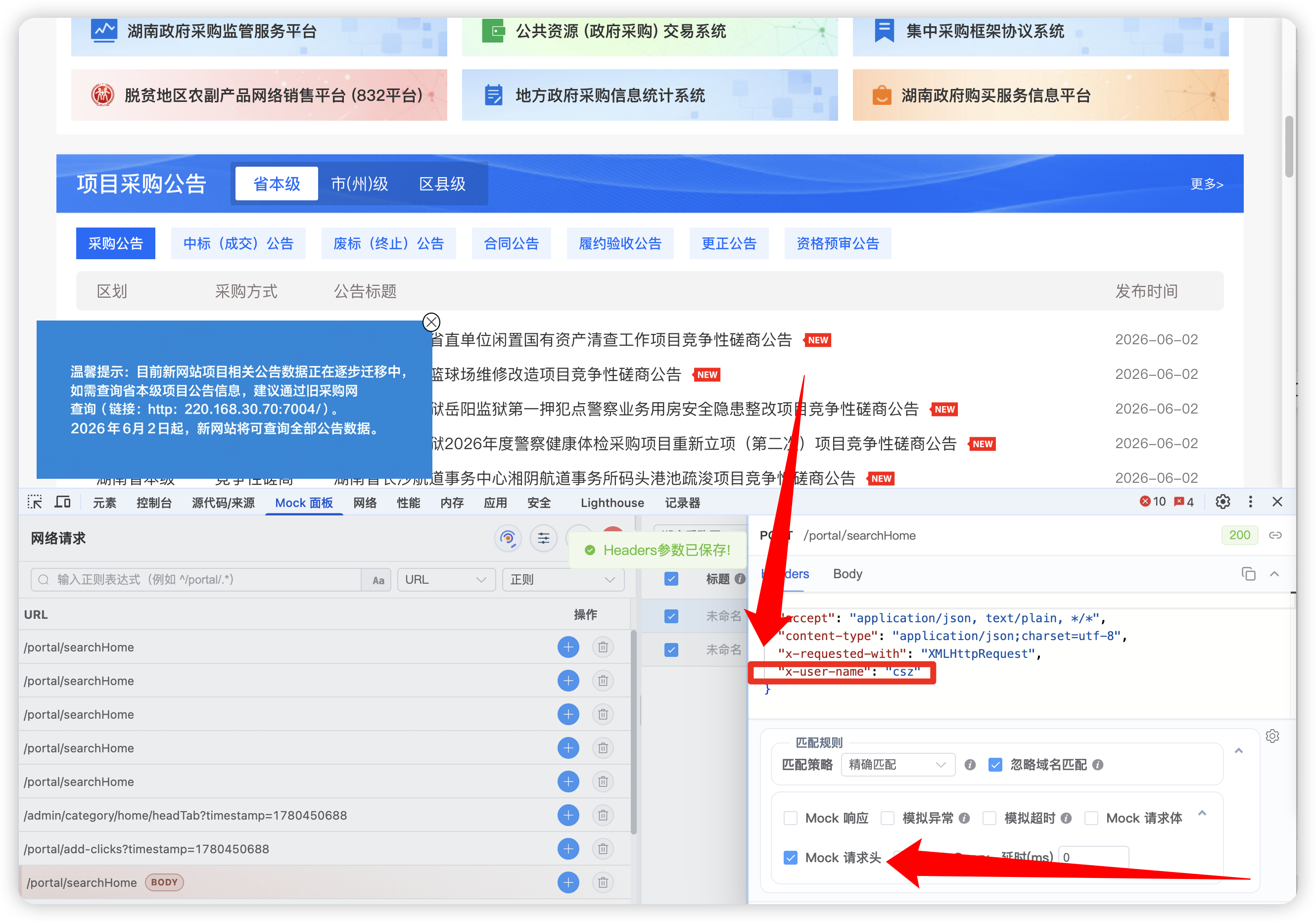
Request headers
Enable Mock request headers and edit the Headers panel to simulate clients, switch authentication tokens, or test CORS-related behavior. Disable Mock response if you need to inspect the backend's real handling.
Behavior switches
Ignore domain matches the same path across local, test, staging, and production origins.
Simulate error returns an error status such as
500to test error handling.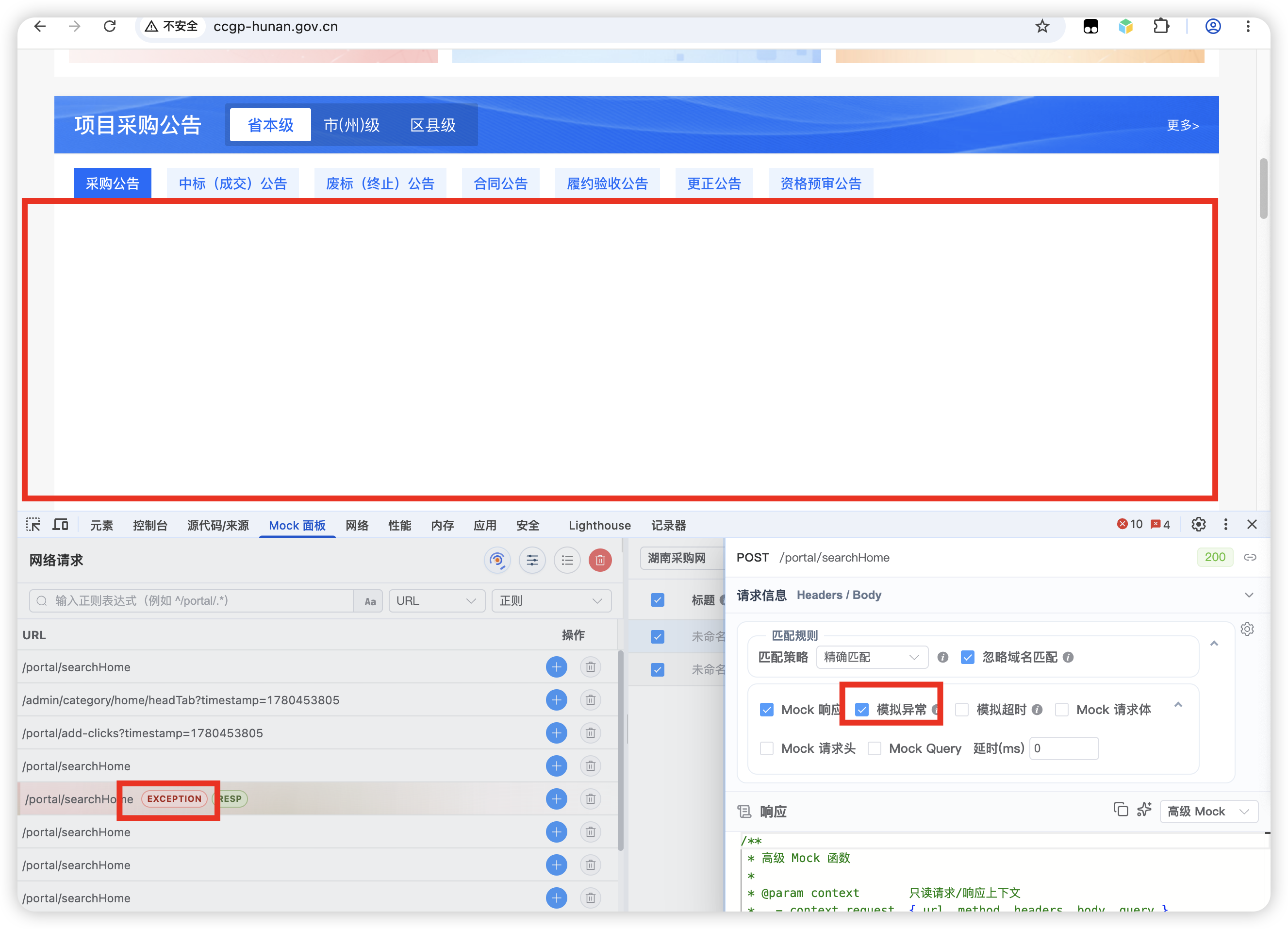
Simulate timeout tests loading states and timeout retries.
Response delay adds a delay in milliseconds to simulate a slow network or verify loading indicators.

These options can be combined, such as an error plus a delay for testing weak-network feedback.
Match strategy walkthroughs
Precise match: one endpoint, different inputs
Use Precise when the same endpoint should return different data for different request parameters. Each rule remains independent.
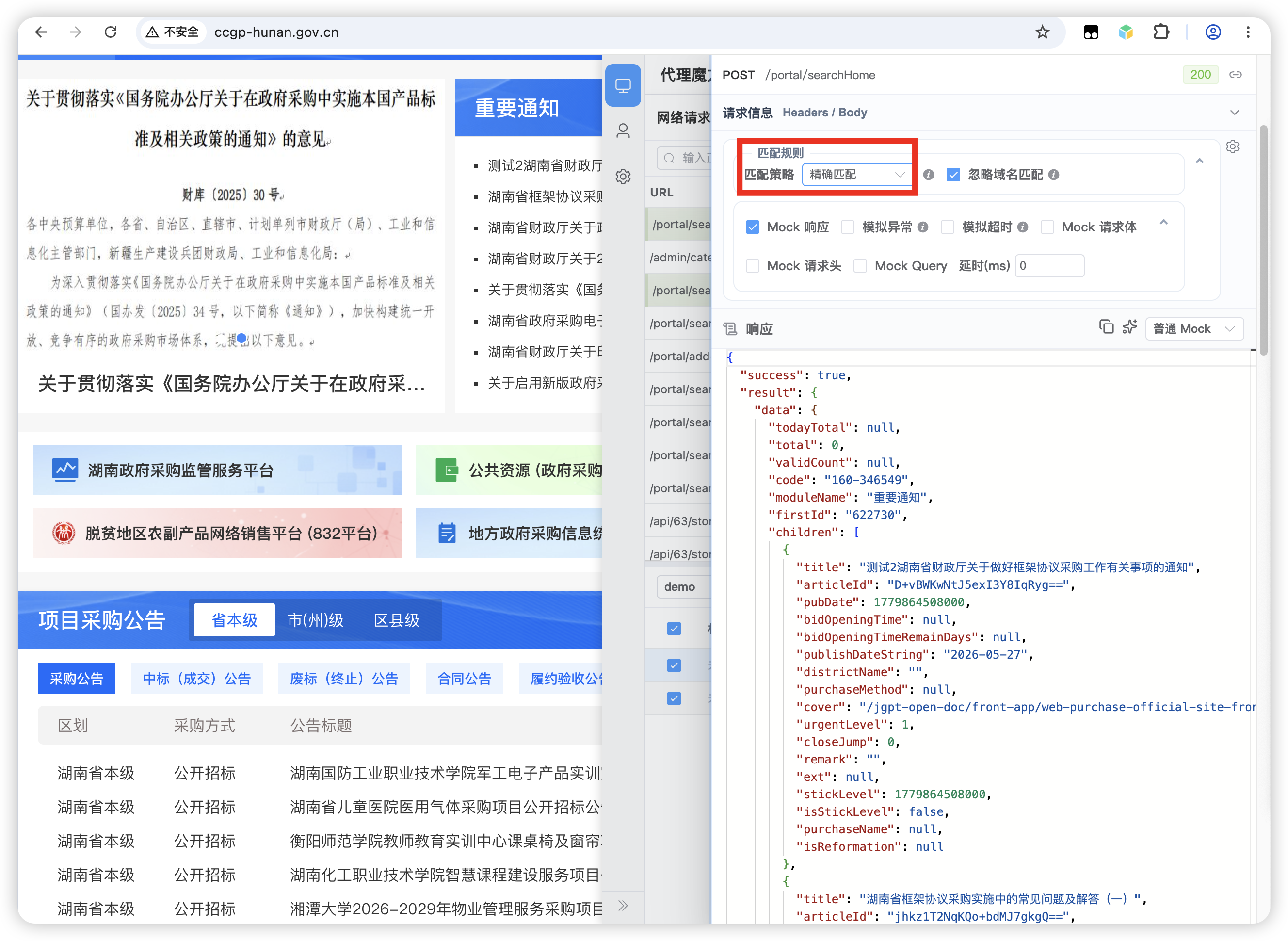
The same URL can then match different mocks based on its complete input.

Endpoint match: one shared fallback
Use Endpoint when only the path matters:
GET /api/user/list?page=1&size=10matches.GET /api/user/list?page=5&size=20also matches because the query is ignored.
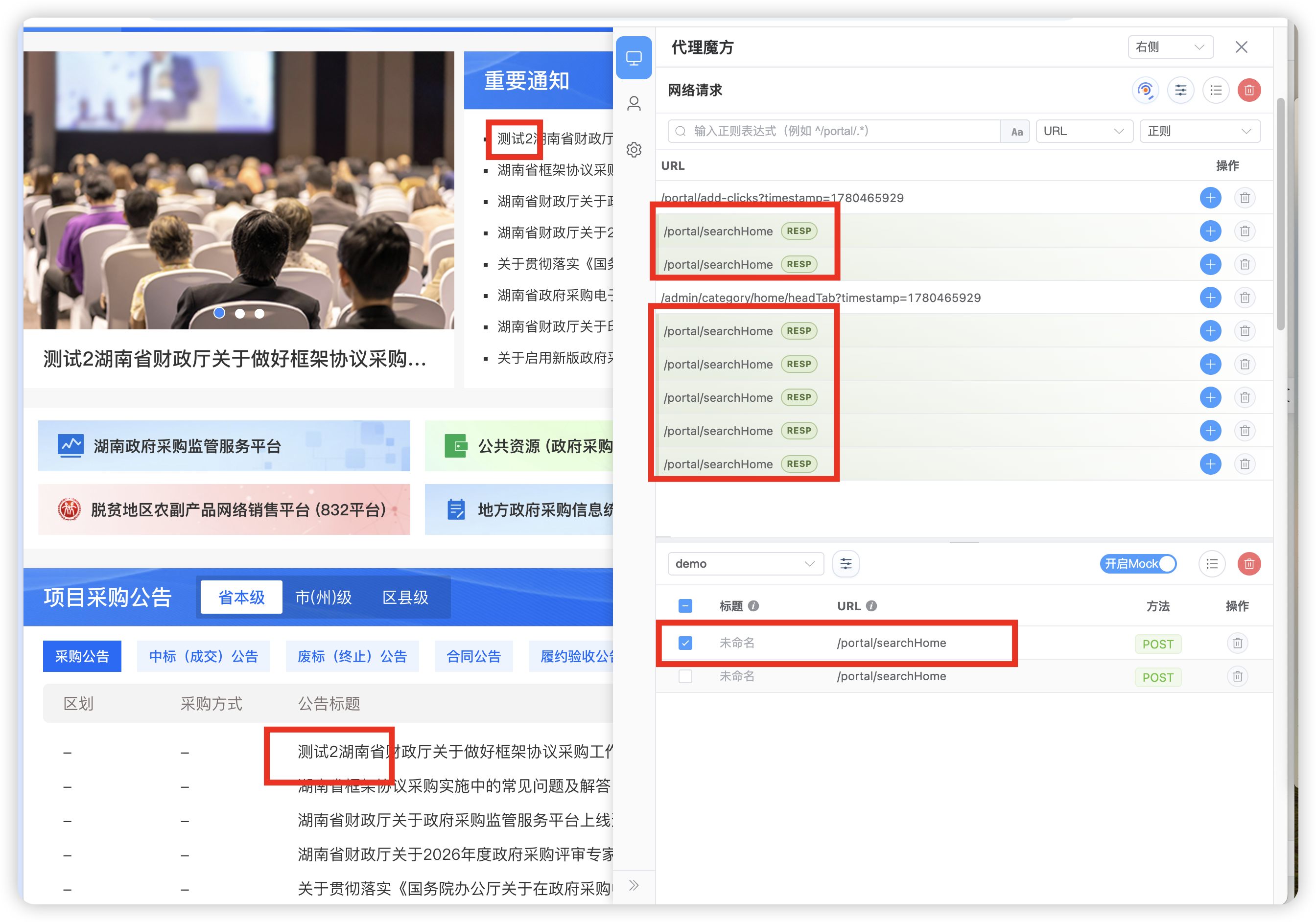
Smart match: request replay
Smart matching uses precise matching first, then falls back to the endpoint. This balances accuracy and coverage when replaying exported traffic.
- Captured
GET /api/list?page=1&size=10returns its exact exported response. - Uncaptured
GET /api/list?page=2&size=20falls back to the same endpoint rule.
Custom match
Use custom matching to combine URL, method, and body conditions when the built-in strategies are not enough.
Dynamic paths
Contains works for IDs in a path such as /api/goods/123 and /api/goods/456:
- Select Custom, choose Contains, and enter
/api/goods/. - Both example URLs match the same rule.
Regex works for dynamic prefixes such as /v1/api/list and /v2/api/list:
- Choose Regex and enter
/v\d+/api/list. - Both versioned paths match.
Request methods
A rule can match every method or only the method recorded when it was created.
For an endpoint where GET /api/order reads an order and POST /api/order creates one:
- Create two rules with the same URL and different methods.
- Select Match specified method so each request receives the correct mock.
Request-body comparison
- Off (default in custom matching) compares only the URL conditions.
- On also requires the request-body fingerprint to match.
For PUT /api/user/update, enabling body comparison allows {"name":"Alice"} and {"name":"Bob"} to match different rules.
TIP
Body comparison is enabled by default for precise and smart strategies, and disabled for endpoint matching. Custom matching lets you choose explicitly.
The following example matches every method, uses a regex that accepts any URL, and disables body comparison.
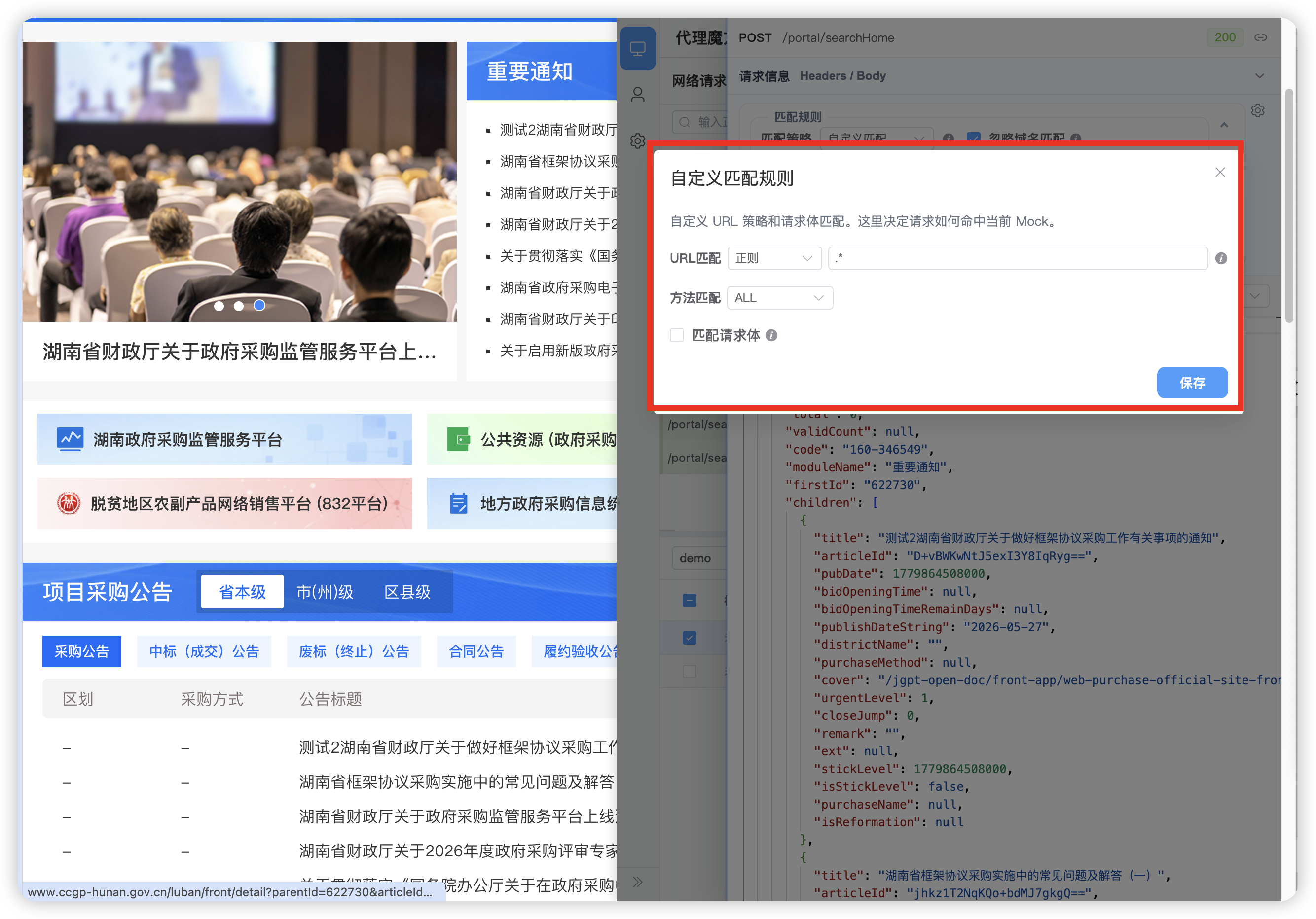
Every request can now match the rule.